Log an Expense by Double Tapping the Back of Your iPhone
You can log a purchase without opening any app: tap the back of your iPhone twice, type the price, pick the category, and it is saved. It runs on iOS's own Back Tap setting and one shortcut from TrackExpenses, and takes about a minute to set up once.
What you need
- An iPhone 8 or later on iOS 14 or later. Back Tap is an iPhone setting; iPad has no such option.
- TrackExpenses installed and opened once, so its "Log an Expense" action exists in Shortcuts.
- The ready-made "Log Expense" shortcut (step 1 below). Back Tap can only run shortcuts that are in your own Shortcuts library, which is why the app hands you one rather than adding itself to Back Tap.
Nothing here connects to your bank, and the shortcut sends nothing anywhere: it asks three questions and saves the answer in your ledger on the iPhone.
Step 1: Add the Log Expense shortcut
Open this link on your iPhone: Get the Log Expense shortcut. Shortcuts opens and shows "Log Expense" with one action, Log an Expense in TrackExpenses. Tap Add Shortcut. It now sits in the Shortcuts app's library under that name; keep the name as it is, because Back Tap lists shortcuts by name.
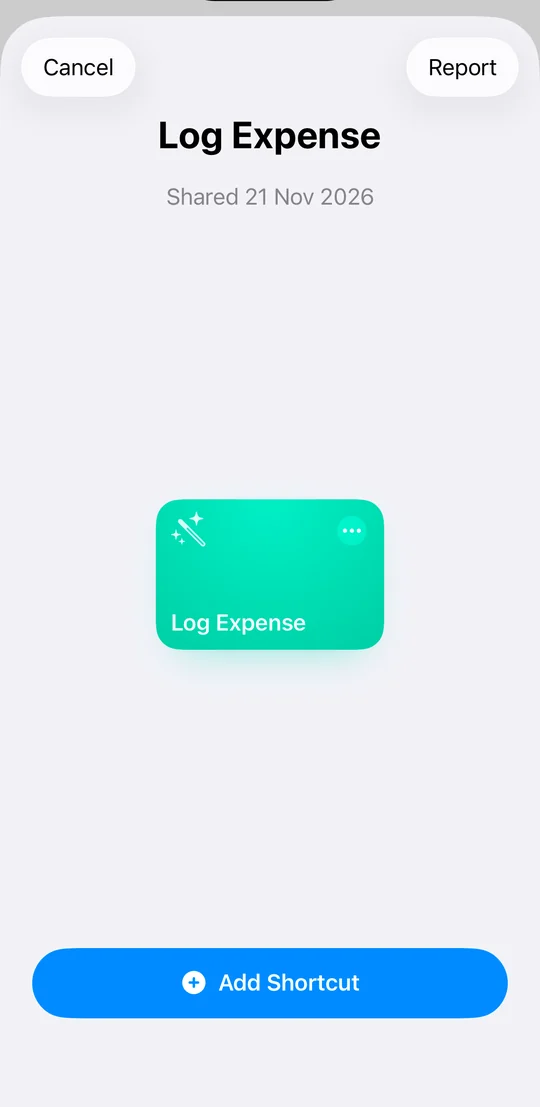
The action asks three things each time it runs: the amount, the category, and a description you can leave empty. You can open the shortcut to look at it, but you don't need to change anything.
Step 2: Turn on Back Tap
Open the Settings app and follow this path: Settings › Accessibility › Touch › Back Tap › Double Tap. The list of actions is long, so type Log Expense in the search field at the top and tap it in the results. A check appears next to it.
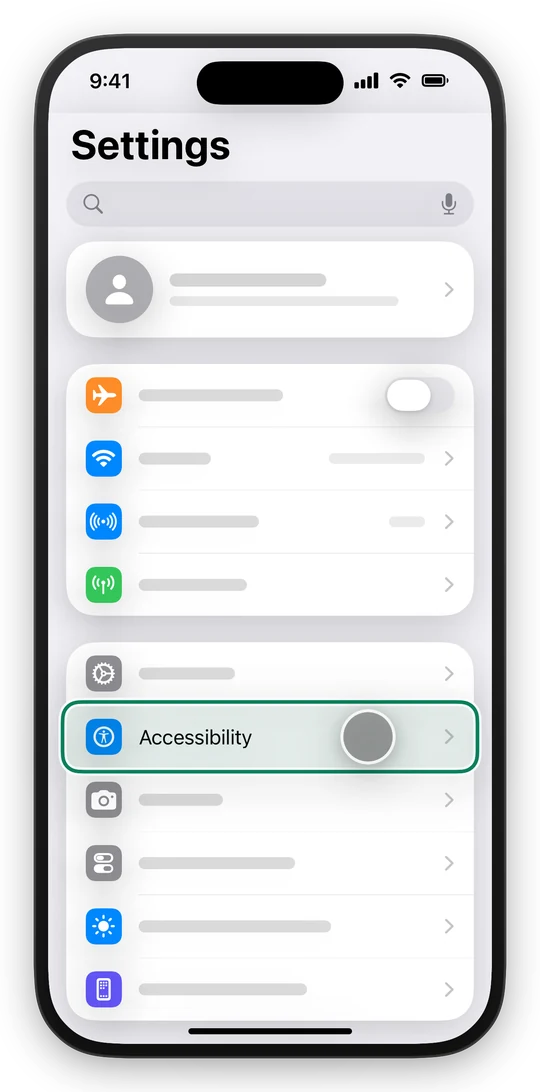
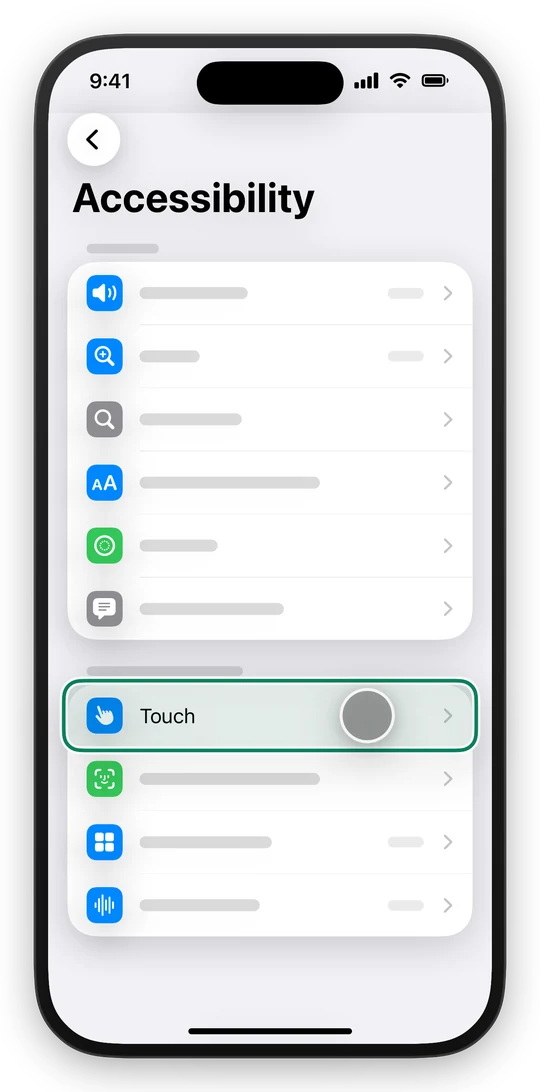
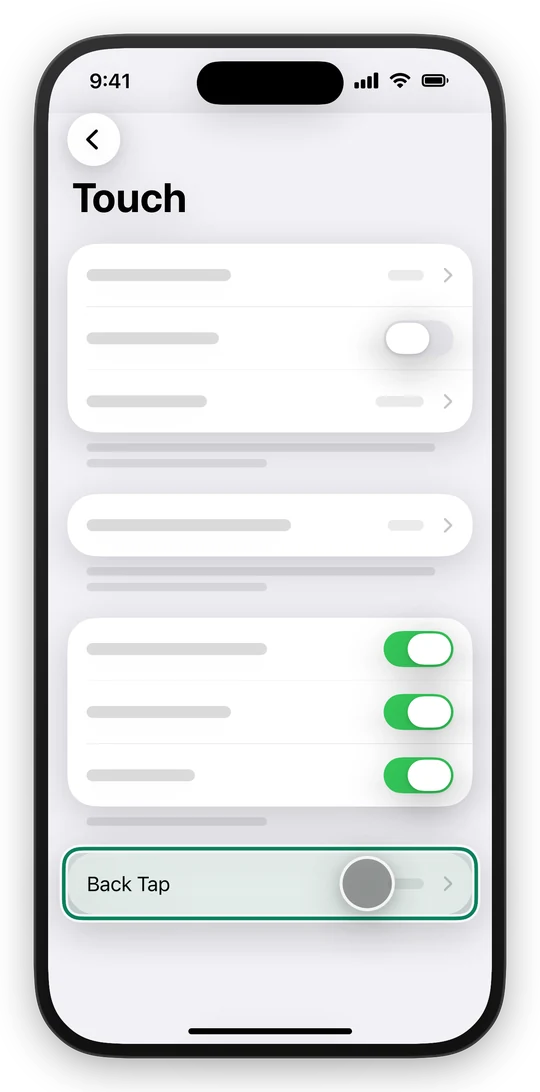
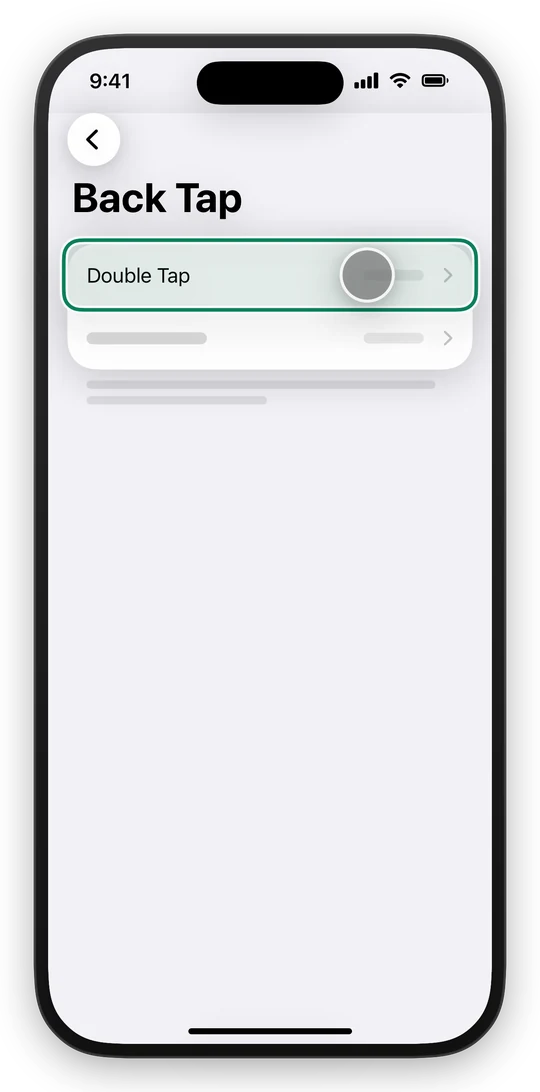
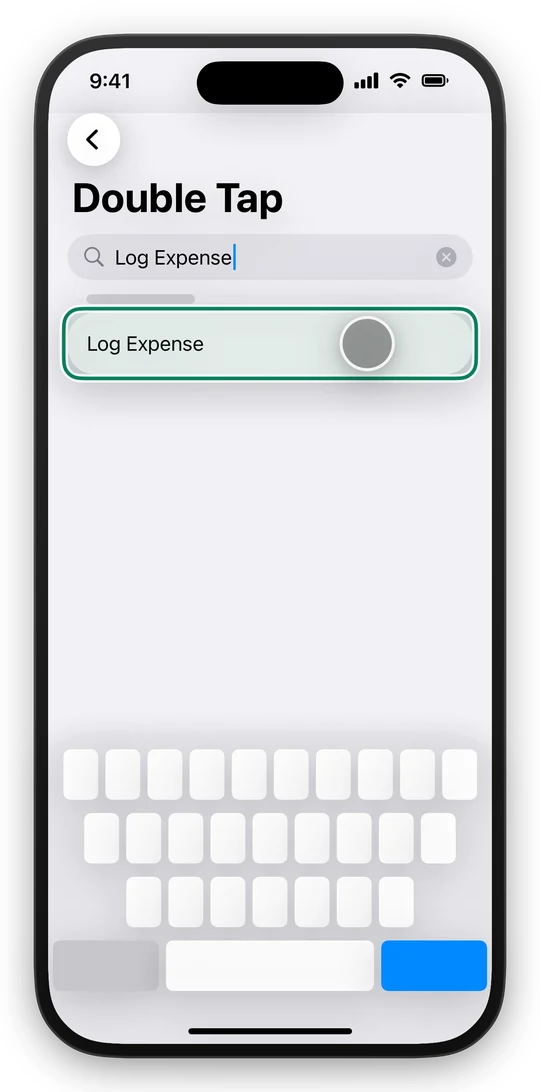
The pictures come from the walkthrough in the app (More → Double Tap to Log → Watch the steps in the next version): they show where each row sits, and on your iPhone every row carries its name.
Touch is in the Physical and Motor group of Accessibility, and Back Tap is near the bottom of the Touch screen. Apple offers apps no link that opens this screen directly, so it takes these few taps once. If you would rather keep Double Tap for something else, choose Triple Tap instead and pick Log Expense there.
Step 3: Try it
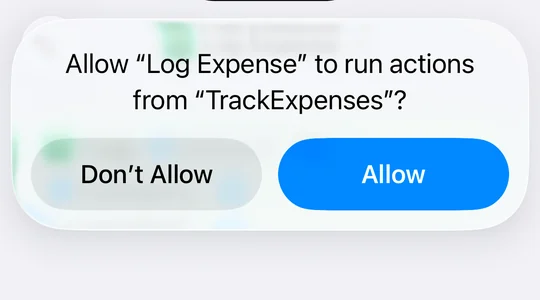
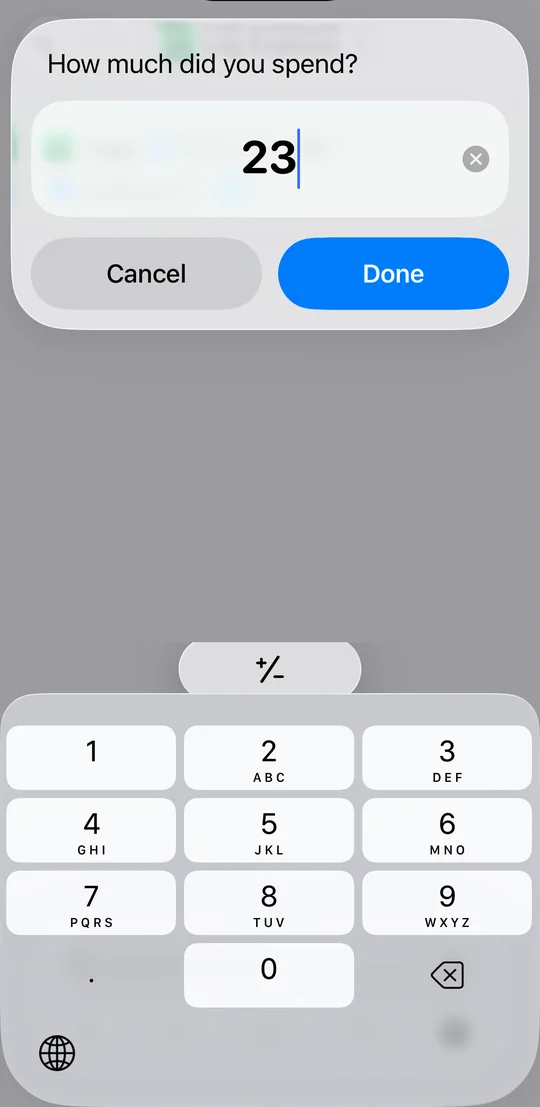
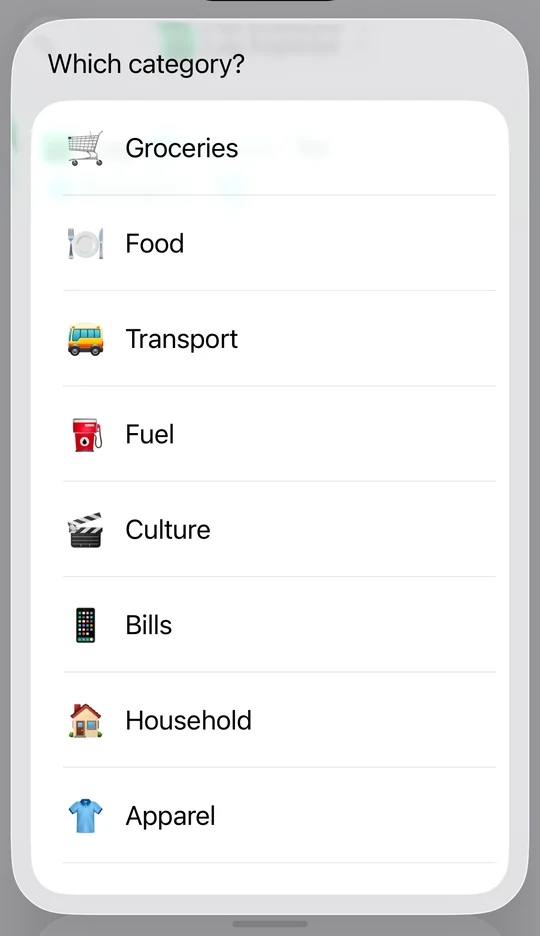
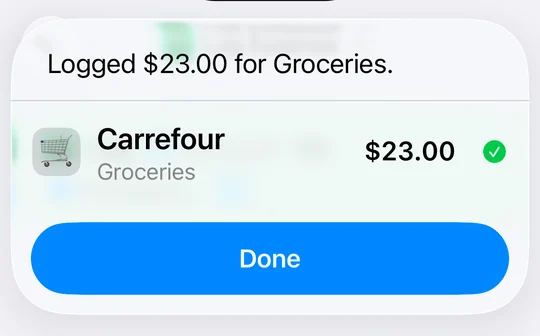
Double tap the back of the iPhone, near the camera, with a fingertip. The first time, iOS asks whether "Log Expense" may run actions from TrackExpenses: tap Allow. Then type a price on the number pad, tap Done, pick a category, add a description such as the shop's name or leave it empty, and tap Done again. Shortcuts confirms what was logged, and the entry is in your ledger the next time you look, with today's date and your default account.
A worked example
You are paying for groceries at the till with your phone in your hand. Before you put it away, you tap its back twice. The number pad appears over whatever app was open: you type 23 and tap Done, choose Groceries, type Carrefour and tap Done. That is the whole entry. Back in TrackExpenses that evening, Carrefour · Groceries · 23 is in today's list, it counts against your Groceries budget, and your daily budget for tomorrow already accounts for it.
Limits and common mistakes
Back Tap needs a firm, quick double tap on the back of the phone. A thick case can make it miss; tap a little harder or nearer the camera. It may also fire by accident when you put the phone down on a hard surface; if that happens, cancel the number pad.
The shortcut logs expenses only. Income, transfers between your own accounts, a foreign currency or a split purchase need the app, where the entry sheet has every field.
The entry uses your default account. If you pay from several cards, change the account in the app afterwards, or use voice entry in the app ("lunch 30 with the credit card") when the account matters.
If nothing happens when you double tap, check three things: the shortcut is still called Log Expense in the Shortcuts app, Settings › Accessibility › Touch › Back Tap › Double Tap shows a check next to it, and you tapped Allow the first time. If you renamed or deleted the shortcut, add it again from the link above and choose it again in Back Tap.
Other ways to log without typing
Double tap is the fastest way to log something you just paid for in cash or on a card that sends no alert. For card purchases, the automatic routes need no tap at all: bank SMS alerts and bank alerts by email can log themselves through a Shortcuts automation, and Apple Pay purchases can too, through the Wallet Transaction trigger. For several purchases at once, voice entry takes a whole list in one sentence. Siri and widgets cover the rest.
Frequently asked questions
Is Double Tap to Log free? Yes. Back Tap is part of iOS, the shortcut is free, and expenses logged through it count like any other entry in the free ledger.
Does it work when the iPhone is locked? Back Tap works with the screen on. On a locked iPhone, iOS may ask you to unlock it before the shortcut runs, depending on your settings. The confirmation never shows a balance.
Can I use Triple Tap instead? Yes. Choose Triple Tap in step 2 and pick Log Expense there. Both can be set to different shortcuts.
Why do I need a shortcut at all? Back Tap only offers the shortcuts in your own library, not the actions apps provide. The Log Expense shortcut is one TrackExpenses action, Log an Expense, with its three questions set to be asked each time.
Read next: the Siri, widgets and Shortcuts guide and the widgets and shortcuts feature page.
Source: Apple's iPhone User Guide (Back Tap, under Accessibility › Touch), the TrackExpenses app code (the Log an Expense action and the shared Log Expense shortcut, November 2026). Figures are examples, not financial advice.
Your money, easier to follow.
Expense Tracker: SMS & Voice for iPhone, iPad, Mac and Android.



5.0 on the App Store · 10 ratings across 7 countries · Checked 2026-11-21
App facts and free / Pro limits
Expense Tracker: SMS & Voice (TrackExpenses) is made by Mohamed Elatabany for iPhone and iPad with iOS/iPadOS 17 or later, and runs on Mac computers with Apple silicon. It is also on Google Play for Android 8 or later, where the automatic import reads the notifications of the banking and messaging apps the person picks (Notification access, no SMS permission) and the ledger stays on the phone, with no sync; a Pro purchase belongs to the store it was made in. The app is in English, Arabic, German, Spanish and Brazilian Portuguese, with a full right-to-left Arabic interface. No app account or bank login is required. Optional Shortcuts automations import supported bank SMS, bank email alerts (through Apple’s Mail app) and Wallet purchases, and a bank SMS or email can be pasted; the app does not read your Messages inbox or your email. Voice entry creates on-device drafts on compatible devices and languages. The free ledger includes unlimited manual transactions, budgets, current-period budget moves and Cover with the total unchanged, days left and spent/left amounts, budget alerts (at 80% when ahead of pace, and when over), bill reminders the morning before a repeating expense is due, historical stats, search with Spent and Income totals across every period, private iCloud sync across iPhone, iPad and Mac, 3 accounts, 2 recurring rules, 10 saved voice entries per calendar month per device and 10 successful automatic bank SMS or email imports per calendar month per device. Touching and holding the app icon offers Say an expense, New expense, Paste bank message and Ask your coach. The money coach reads the last budget month and suggests one limit. Today’s spending, a category, account balances, any named month, charts, files and typed logging are worked out on the device without using a question; open questions go to Anthropic’s Claude through the developer’s relay only after the user agrees, with the conversation so far, a summary of this month and last month and, when the model asks, totals for up to 13 months or up to 20 purchases with their date, shop, category and amount; never notes, receipts, account names or numbers, or balances (10 a month free per device). SMS alerts past the free allowance are kept but locked outside totals; upgrading to Pro adds them all, otherwise the next calendar month’s allowance releases as many as it covers. Nothing is dropped and saved history is never locked; when Pro or a trial ends, entries, accounts and repeating bills keep working. Pro adds unlimited voice entry, SMS and email imports, accounts and recurring rules, money coach challenges and more coach questions, a salary plan, forecasts, overall and per-budget daily guidance with repeating bills accounted for first, a daily budget for chosen categories optionally up to a date, what-if planning, Export & Share (CSV of any range and the full JSON backup; every export is Pro since 1.15.0), CSV import, backup restore, themes and alternate icons. Monthly and annual subscriptions and a one-time lifetime purchase are available. Spending calculations depend on your records and are not financial advice.